PDF to Draw.io Converter

Parse a PDF locally in your browser, select one page at a time, render that page to PNG, and reuse the existing AI image-to-DrawIO flow. The original PDF never uploads.

pdf to drawio converter for a Single PDF Page

The pdf to drawio converter keeps the source PDF local in your browser, lets you choose a single page, and turns that page into a PNG before sending it through the existing AI image-to-DrawIO workflow. You get an editable draft that still needs review, not a finished reconstruction.

Local PDF Parsing

The file is parsed in your browser, so the original PDF does not upload. That keeps the input private while still preparing a page image for conversion.

Single-Page Conversion

Choose one page from a multi-page document and process only that page. The converter does not batch the full PDF into one result, which keeps the workflow predictable and focused.

Reviewable Editable Draft

The output is a reconstructed draft with editable objects, suitable for correction in Draw.io. Treat it as a working starting point and verify labels, connectors, and layout before final use.

PDF Pages That Work Best with the pdf to drawio converter

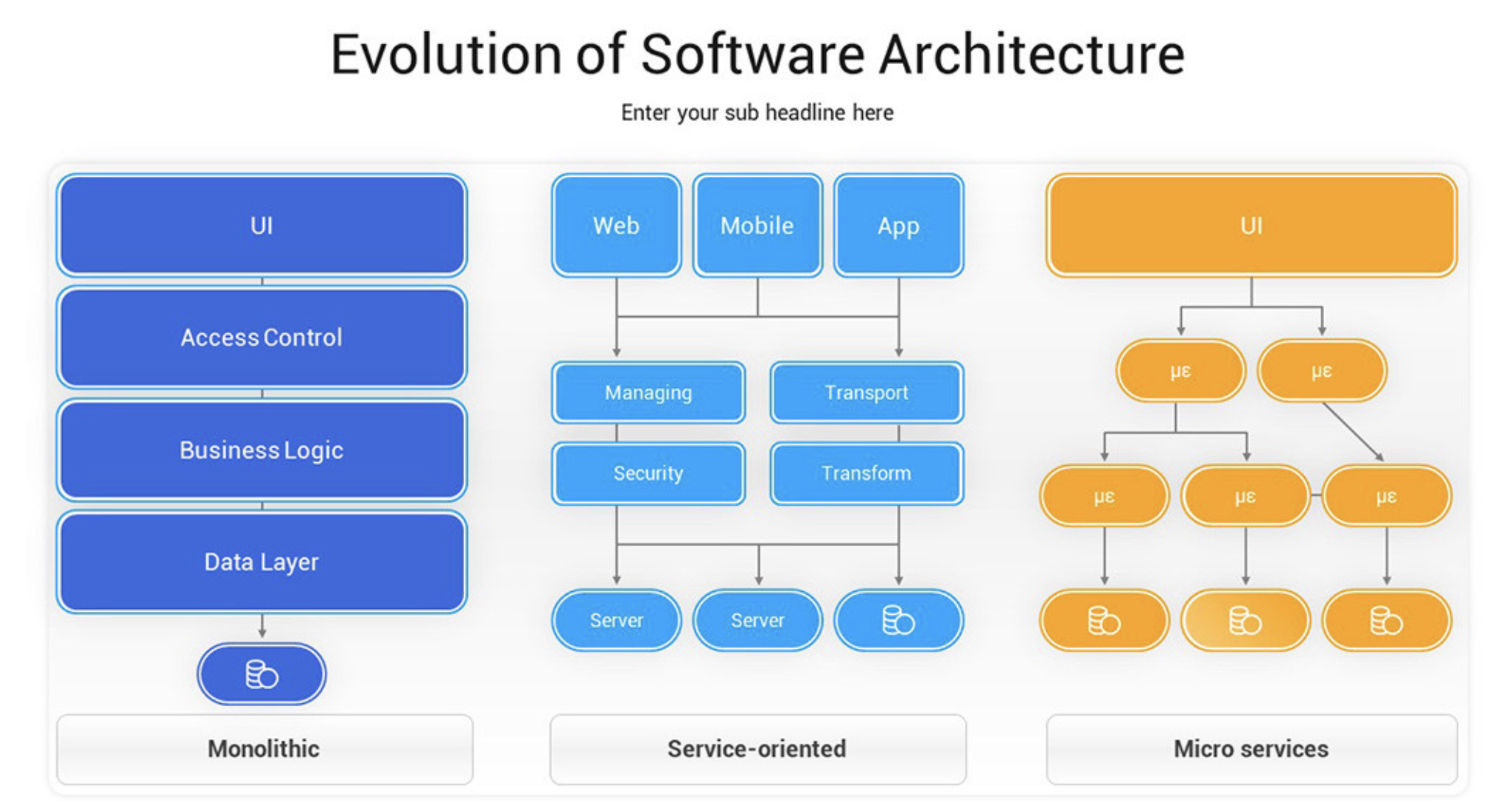
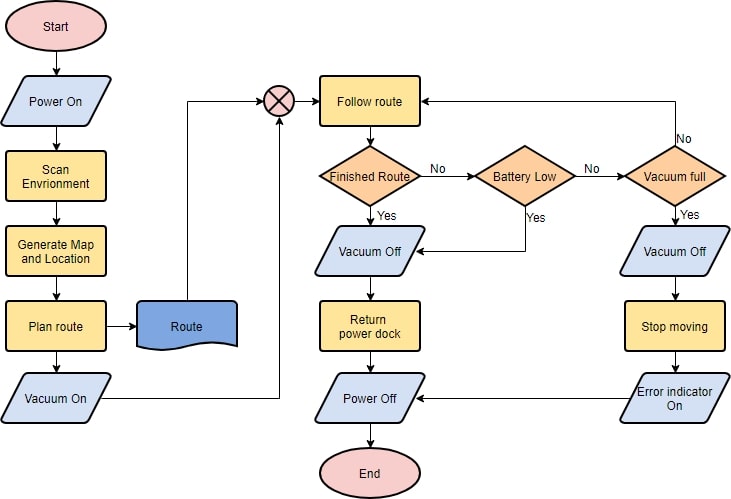
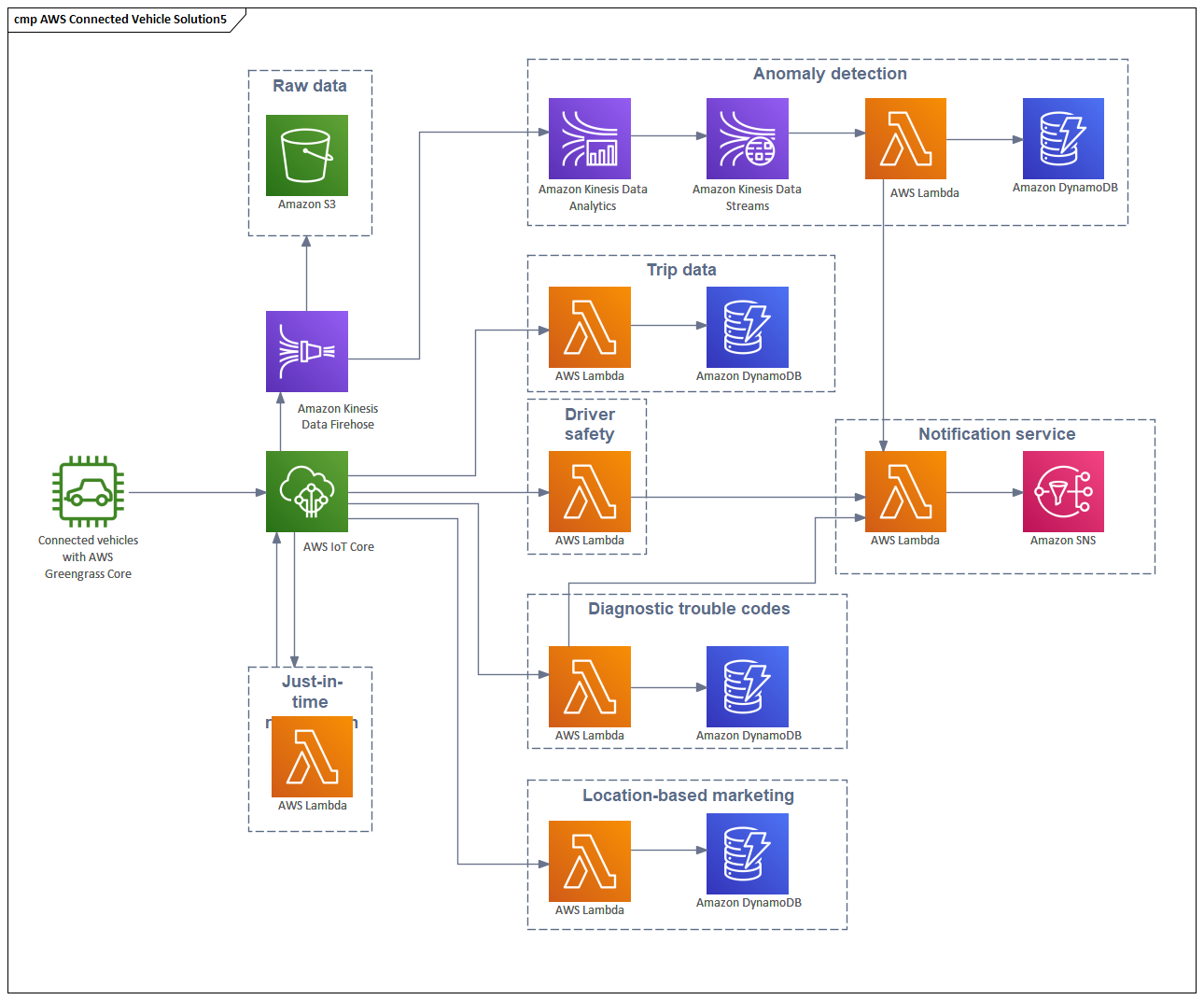
Use the converter when a PDF page already contains a diagram, workflow, or structured visual that is easier to rebuild than redraw from scratch.

What the pdf to drawio converter does well

The workflow is built for page-level recovery, not guesswork. It extracts one chosen page, turns it into a PNG, and reuses the existing image-to-DrawIO engine.

Support Large PDF Documents

Handle PDFs up to 50MB and as many as 200 pages. You still convert one selected page at a time, which keeps large files manageable.

Keep PDF Parsing Local

The browser does the PDF parsing before conversion starts, so the original file is not uploaded as the first step of the workflow.

Reuse the Existing Image Pipeline

After the page becomes a PNG, the converter hands it to the same AI pipeline used by image-to-drawio pages. That keeps behavior consistent across formats.

Handle Readable Diagram Structure

The best results come from pages with visible boxes, arrows, labels, tables, or other structured elements that the model can interpret as a diagram draft.

Keep Editability First

The result is laid out as editable Draw.io objects rather than a locked screenshot. That makes it faster to correct, relabel, and restructure the page.

Design the Result for Review

No PDF conversion is perfect. The converter aims to produce a solid draft, then leave the final accuracy check to you before sharing or publishing.

Why It Fits

When a pdf to drawio converter fits your workflow

Choose this workflow when the PDF page is readable, the diagram needs to stay editable, and you want to avoid re-uploading the original document.

Why PDF Parsing Happens Locally

The browser reads the PDF first, so you can inspect a local document without sending the whole file upstream. That matters when only one page contains the diagram you need.

After you choose a page, the converter renders it to PNG and reuses the existing image-to-DrawIO flow. The browser-local step keeps the scope tight and avoids a bulk upload.

Why You Select One Page

Large PDFs often mix diagrams, tables, notes, and appendices. You select one page because only one page is processed in each run.

That page-by-page approach is easier to review than a whole-document pass. It also makes it clear which source image created the draft.

What Happens After Page Rendering

Once the chosen page becomes a PNG, the existing AI Image-to-DrawIO converter takes over. The result is a reconstructed diagram draft with text, shapes, and connectors.

This handoff matters because the PDF itself is not the model input. The converter works from the rendered page image, so the downstream behavior stays consistent.

Where This Workflow Fits Best

This workflow is most useful when a single PDF page already contains a clear flowchart, architecture, or process map that should become editable.

It is also a good fit for archived reports and shared attachments. If the page is readable enough, converting it is faster than redrawing the structure.

What the Conversion Does Not Promise

The converter does not promise perfect reconstruction, original XML recovery, or native PDF editing. It creates a draft that still needs human review.

If the page is blurry, scanned at a bad angle, or packed with overlapping content, expect more cleanup in Draw.io. The goal is a useful starting point.

How It Works

Use the pdf to drawio converter in three steps

Upload a PDF, pick one page, and review the reconstructed draft before you treat it as the working diagram.

1

Upload the PDF

Choose a PDF up to 50MB and 200 pages. The file is parsed locally in your browser, so the original document is not uploaded.

2

Select one page

Pick the page that contains the diagram you want to rebuild. Only the selected page is rendered to PNG and sent through the AI pipeline.

3

Review the Draw.io draft

Open the result in the workbench, check labels and connectors, and correct any ambiguous structure before you share or export it.

FAQ

Questions About the pdf to drawio converter

Understand how page selection, browser-local parsing, credits, and review work before you convert a PDF page.

1

What does the converter actually process?

It processes one selected PDF page at a time. The page is rendered to PNG in your browser, then passed into the AI image-to-DrawIO flow.

2

Does the converter upload the original PDF?

No. The PDF is parsed locally in your browser, and only the rendered page image continues through the workflow.

3

What file sizes and page counts are supported?

PDFs can be up to 50MB and 200 pages. Even then, only one chosen page is converted in a single run.

4

Can it convert every page at once?

No. The workflow is intentionally page-by-page. Pick the page that matters, then repeat with another page if needed.

5

What kind of output should I expect?

The result is an editable draft in Draw.io, not a perfect reproduction. Use it to recover structure, then review text, shapes, and connectors.

6

How long does conversion take?

Most jobs finish in 1-2 minutes. Larger or denser pages can take longer because the chosen page must be rendered and interpreted carefully.

7

How do credits work?

You can try 1 anonymous conversion for free. Registering gives you 2 credits and lets you return to your conversion history.

8

Why does the result need review?

A PDF page can contain tiny text, charts, or clutter that the converter interprets imperfectly. Review the draft so the final Draw.io file matches your intent.

Use the pdf to drawio converter on one PDF page

Choose the page, review the draft, and keep working in Draw.io.