Photo to Diagram Converter

Turn a photo of a whiteboard, sketch, or printed diagram into an editable Draw.io file. Try 1 conversion free without an account; register to receive 2 credits.

Try 1 conversion free without an account

Register to receive 2 credits and save your conversions!

From Camera Capture to Working Diagram

A useful diagram often starts on a whiteboard, notebook, or printed page. Photograph it while the structure is still visible, then convert that reference into an editable Draw.io draft. This tool is for photos that contain a diagram; it does not turn an ordinary scene into a technical diagram.

Built for Real-World Sources

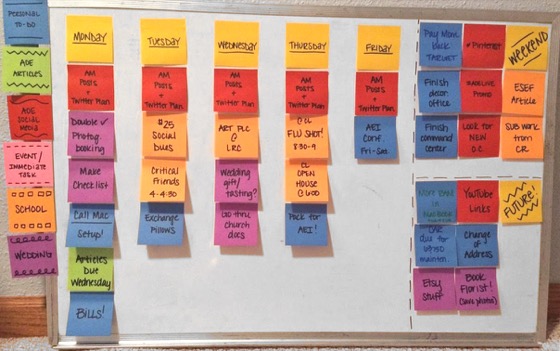
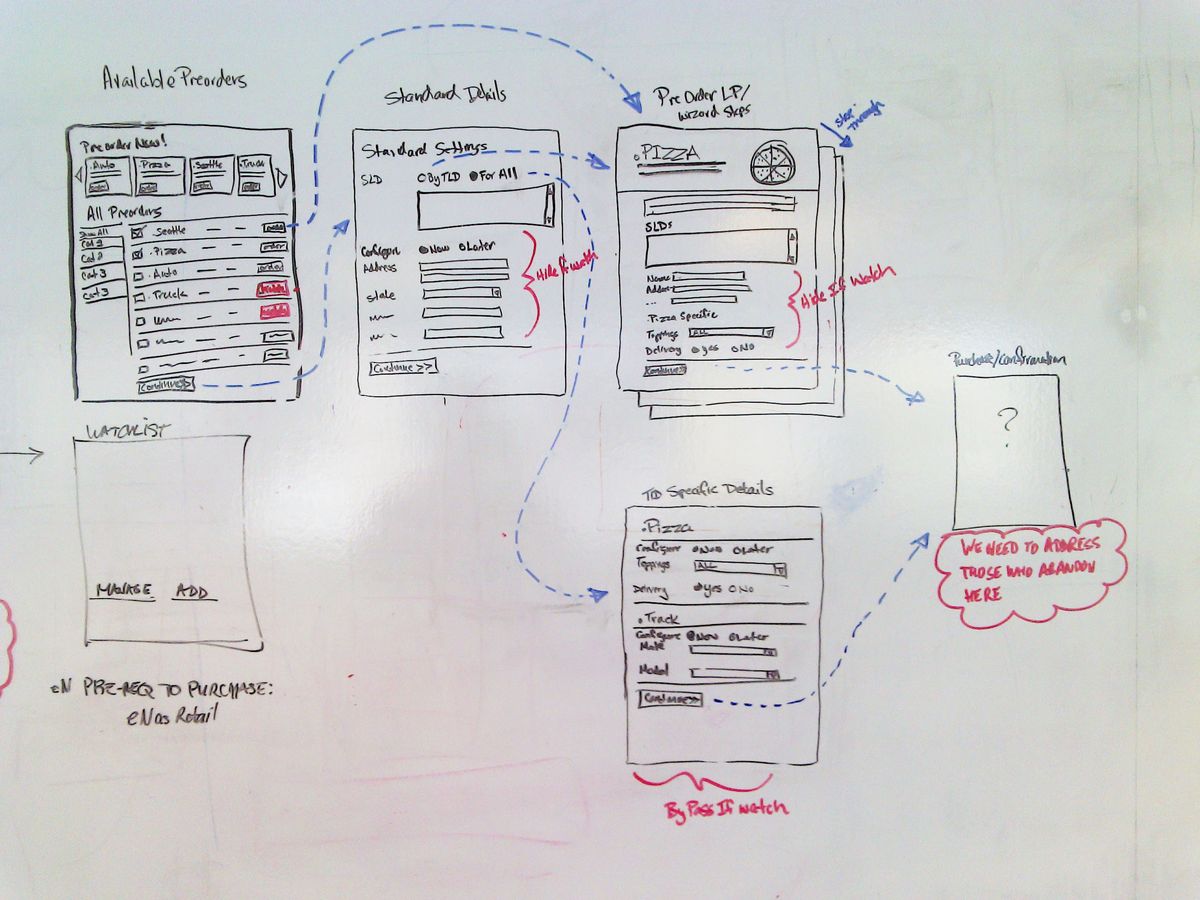
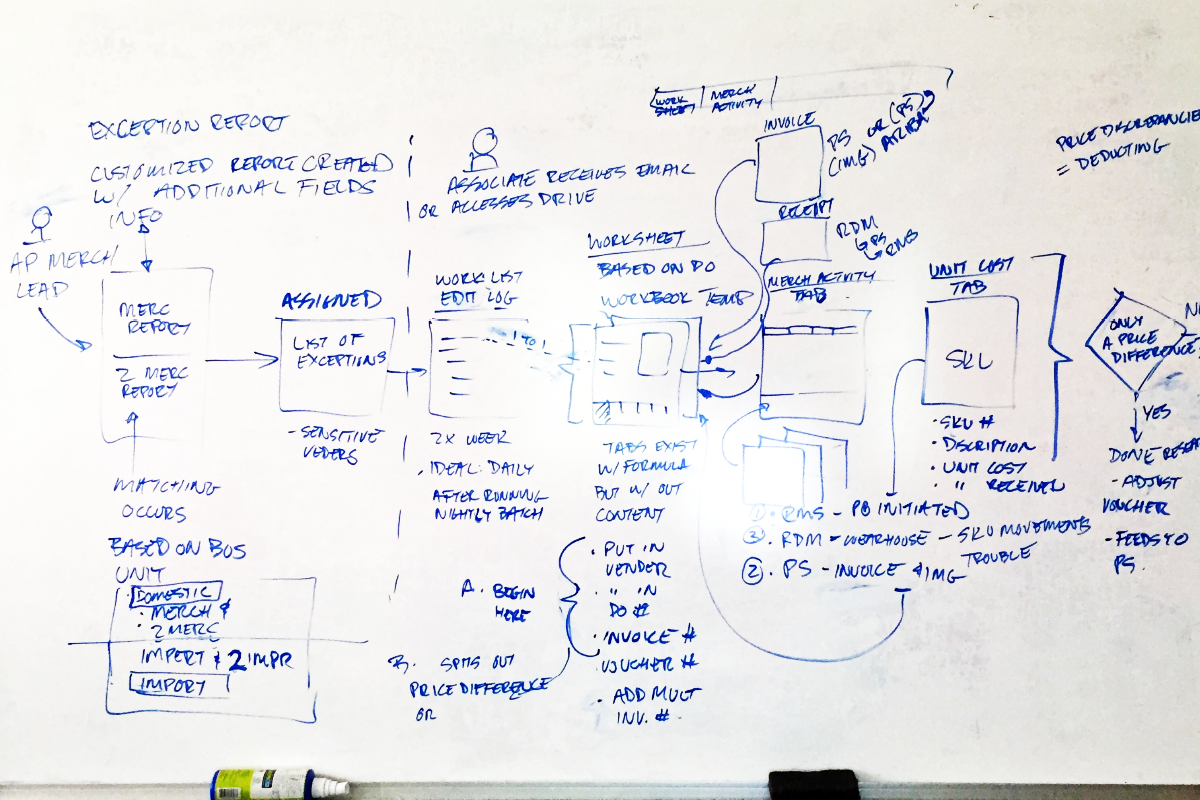
Use photos of whiteboards, paper sketches, workshop notes, and printed diagrams when no editable source file exists.

Structure Instead of a Flat Photo

The service identifies the visible labels, shapes, arrows, and groups, then rebuilds them as diagram elements.

A Draft You Can Correct

Review the result in Draw.io, where unclear handwriting, camera distortion, or hidden connectors can be corrected.

Photo Sources Worth Turning into Editable Diagrams

Capture ideas before a board is erased, recover sketches from project notes, or digitize a printed process that still needs revision.

Preserve the Idea, Then Improve the Diagram

Photo conversion works best as a recovery workflow: provide a readable view, reconstruct the visible structure, and use the editor for the final pass.

Whiteboards, Paper, and Print

Upload a camera photo of a hand-drawn diagram, a meeting board, a notebook sketch, or a printed process document.

Text Becomes Editable

Readable labels are recreated as text elements so names, steps, and annotations can be corrected after conversion.

Relationships Stay Visible

Arrows, branches, groups, and relative placement are used to reconstruct the meaning shown in the photographed diagram.

Honest Handling of Ambiguity

Faint marker, glare, steep camera angles, and hard-to-read handwriting can reduce accuracy. The workbench makes those details easy to review.

Continue Editing in Draw.io

Move shapes, rewrite labels, adjust connectors, and restyle the converted draft without rebuilding the whole diagram.

Save Versions When Signed In

Signed-in users can keep the conversion record and preserve saved diagram versions while the document is refined.

Photo to Diagram Converter Guide

What a Photo to Diagram Converter Needs From a Source Image

A photo to diagram converter works best when the image already contains a diagram, sketch, whiteboard, or other connected layout that can be reconstructed in Draw.io.

Choose a Real Diagram Photo

Use the photo to diagram converter for whiteboards, paper sketches, flowcharts, process maps, wiring notes, classroom boards, or printed diagrams that already show a structure worth rebuilding. Capture the board before it is erased, and move people, markers, or sticky notes that cover important labels and connections.

If the image is only a landscape, portrait, product shot, or room photo, the photo to diagram converter cannot infer a trustworthy technical diagram from it. The source needs visible diagram logic, such as labeled shapes, branches, arrows, boundaries, or grouped ideas, rather than objects that merely happen to appear together in a scene.

Shoot Straight and Even

Hold the camera as square to the page or board as possible, keep the entire diagram in frame, and give the photo to diagram converter enough margin to see arrows and labels at the edges. Step back instead of using an extreme wide-angle view, which can bend lines and make shapes near the corners look different from those in the center.

Soft daylight or even indoor lighting is better than glare or harsh shadows, because the photo to diagram converter can recover text, lines, and connector paths more reliably. Check the image at full size before uploading: marker strokes should remain distinct, and bright reflections should not erase parts of a decision box or connector.

Prepare a Clean Input

Before uploading, check that small handwriting, legends, and numbered steps stay readable at normal zoom, since the photo to diagram converter depends on the source image rather than invented detail. Use the original camera file when possible; repeated messaging or screenshot compression can soften small text and turn thin arrows into broken lines.

Avoid heavy filters, motion blur, or aggressive cropping, and rotate the image only when the full diagram remains visible to the converter. Crop unrelated surroundings while preserving line endings and edge labels. For a very large board, separate clear photos are usually easier to assess than a collage with several reduced views.

Review the Draw.io Draft

The photo to diagram converter rebuilds the visible layout into an editable Draw.io file, but it does not guess missing connectors, hidden text, or unreadable notes. Compare the draft with the source before treating it as documentation, paying particular attention to arrow direction, decision branches, repeated labels, and elements that overlap in the photo.

After the conversion, use Draw.io to correct uncertain handwriting, tidy overlaps, and adjust shapes where the photo to diagram converter had to make a conservative reconstruction. Save after the important corrections so signed-in projects retain a useful version, then continue refining spacing and style without losing the recovered structure.

How It Works

Convert a Photo to an Editable Diagram in Three Steps

A straight, well-lit photo with readable text gives the converter more reliable source information.

1

Take a Clear Photo

Include the complete diagram, hold the camera as straight as possible, avoid glare and shadows, and check that labels are readable before uploading.

2

Upload and Reconstruct

Choose a PNG, JPG, JPEG, or WebP file up to 10MB. The service rebuilds the visible text, shapes, connectors, and layout in about 1-2 minutes.

3

Review the Editable Draft

Open the result in the workbench, correct any uncertain handwriting or connections, then save or download the Draw.io file.

FAQ

Questions About Converting Photos to Diagrams

What to photograph, how to improve the source, and what to expect from the editable result.

1

Can I convert any photo into a diagram?

The photo must visibly contain a diagram, structured sketch, workflow, whiteboard, or similar connected visual. The tool does not invent a technical diagram from an ordinary landscape, person, or product photo.

2

What can I photograph?

Suitable sources include office and classroom whiteboards, notebook sketches, workshop boards, printed flowcharts, architecture drawings, process maps, and other diagrams captured by a camera.

3

How should I take the photo?

Capture the complete diagram, keep the camera close to straight-on, use even lighting, avoid reflections, and make sure small labels are readable when you zoom in.

4

Will angled or shadowed photos work?

Slight perspective and normal room lighting may still work, but steep angles, glare, heavy shadows, blur, or cropped connectors remove useful source information. Retake the photo when possible.

5

Can it read handwriting?

Readable handwriting can be reconstructed, but handwriting quality varies. Review names, numbers, and short labels in the editor, especially when strokes overlap or the marker is faint.

6

What does the output contain?

The output is a Draw.io diagram made from editable elements such as text, shapes, and connectors. It is an AI-generated draft rather than a flat copy of the photo.

7

Which photo formats are supported?

You can upload PNG, JPG, JPEG, and WebP files up to 10MB. Phone photos may need to be exported to one of these formats before upload.

8

Can I try it for free?

Yes. You can use 1 free anonymous conversion. Registering gives you 2 credits and lets you keep conversion records in your account.

Save the Diagram Before the Board or Paper Disappears

Use a clear photo, review the reconstructed draft, and keep developing the idea in Draw.io.