SVG to Draw.io Converter

Prepare an SVG locally in your browser, review the rendered preview, and use the existing AI workflow to reconstruct its visible diagram as an editable Draw.io draft.

The original SVG remains local. Only the rendered PNG is uploaded for AI reconstruction.

Maximum SVG size: 10MB

svg to drawio converter for editable reconstruction

A normal SVG enters Draw.io as one image, not editable diagram objects. This workflow renders it locally, then reconstructs a reviewable draft with separate labels, shapes, and connectors.

Local SVG Preparation

The browser checks and renders the source file before any upload. Scripts, animation, and external references are excluded from the prepared image while the original SVG remains on your device.

Visible Structure Reconstruction

The AI receives a bounded PNG representation rather than unsupported SVG input. It interprets visible boxes, arrows, text, groups, and hierarchy as a diagram draft.

Existing Draw.io Workbench

The result opens in the same editor used by other ImageToDrawio conversions, with AI chat, manual editing, saving, and version history available after generation.

SVG diagrams suited to an svg to drawio converter

Clear technical diagrams, workflows, and documentation graphics usually provide the strongest visual structure for editable reconstruction.

What the svg to drawio converter is designed to do

The workflow uses controlled browser preparation and the existing AI reconstruction path instead of sending raw SVG markup to a vision provider.

Accept Real SVG Documents

The input must be a non-empty .svg file with valid XML and a usable width, height, or viewBox. Renaming another file type to .svg does not make it valid.

Bound Rendering Work

The preview is limited to 4096 pixels per side, eight million pixels in total, and less than the existing image upload limit. Oversized output is reduced before upload.

Keep the Raw File Local

Only the prepared PNG continues to storage and the model. The raw SVG source, scripts, animation instructions, and remote resource references do not enter that pipeline.

Preserve the Visible Composition

Vector artwork is rendered at a high working resolution so small labels and narrow lines remain visible to the model. Transparent regions stay transparent in the prepared PNG.

Produce Editable Objects

The model generates Draw.io XML rather than wrapping the source as one image. You can move, relabel, restyle, delete, and reconnect the reconstructed elements.

Continue with Version History

Signed-in users can save manual adjustments, make AI edits, and return to earlier versions through the existing workbench history instead of starting over.

How It Differs

Why an svg to drawio converter needs a reconstruction step

SVG and Draw.io describe different information. Visual reconstruction avoids pretending that ordinary SVG markup already contains a Draw.io graph.

An SVG Image Is Not a Draw.io Diagram

SVG describes visual primitives such as paths, text, fills, masks, and transforms. It does not have to identify which line is a semantic connector, which group is a container, or which objects should remain attached when a node moves.

Draw.io can place a normal SVG on the canvas, but that creates one image object. The purpose of this conversion is different: it uses the visible composition as evidence for rebuilding editable diagram elements.

Why the svg to drawio converter creates PNG first

The current vision providers document raster image formats such as PNG, JPEG, and WebP, not SVG. Rendering locally creates an input that the existing production model path already understands and validates.

This also keeps format-specific complexity out of the upload and model layers. Once the PNG is prepared, conversion follows the same tested credits, fallback, workbench, persistence, and history workflow as other image inputs.

How the svg to drawio converter handles active content

SVG is capable of carrying scripts, animation, links, embedded resources, and foreign content. The converter never inserts the uploaded markup into the application page as live HTML.

Instead, it parses a local copy, excludes active elements and remote references, and loads the result only as an image for Canvas rendering. If those features were essential to the appearance, the preview shows what will actually be converted.

What Happens to Text, Paths, and Connectors

Text that renders clearly can be reconstructed as editable labels. Rectangles, ellipses, lines, arrows, and grouped regions can become separate Draw.io cells when the visual relationships are unambiguous.

Complex paths, filters, masks, unusual fonts, and overlapping artwork may require approximation. A visible arrow can be reconstructed, but an ordinary SVG does not guarantee the original source and target metadata.

When an svg to drawio converter works best

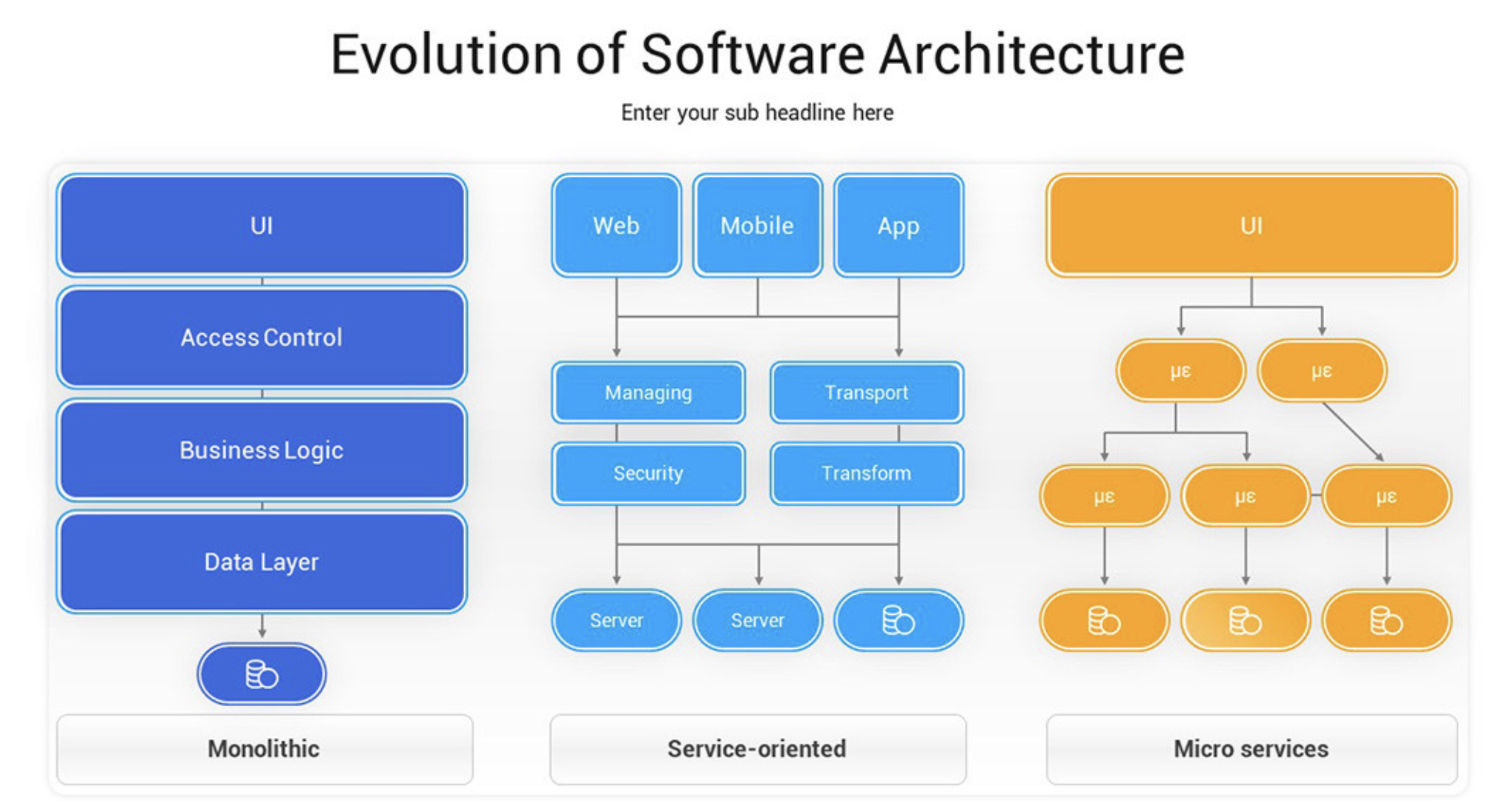
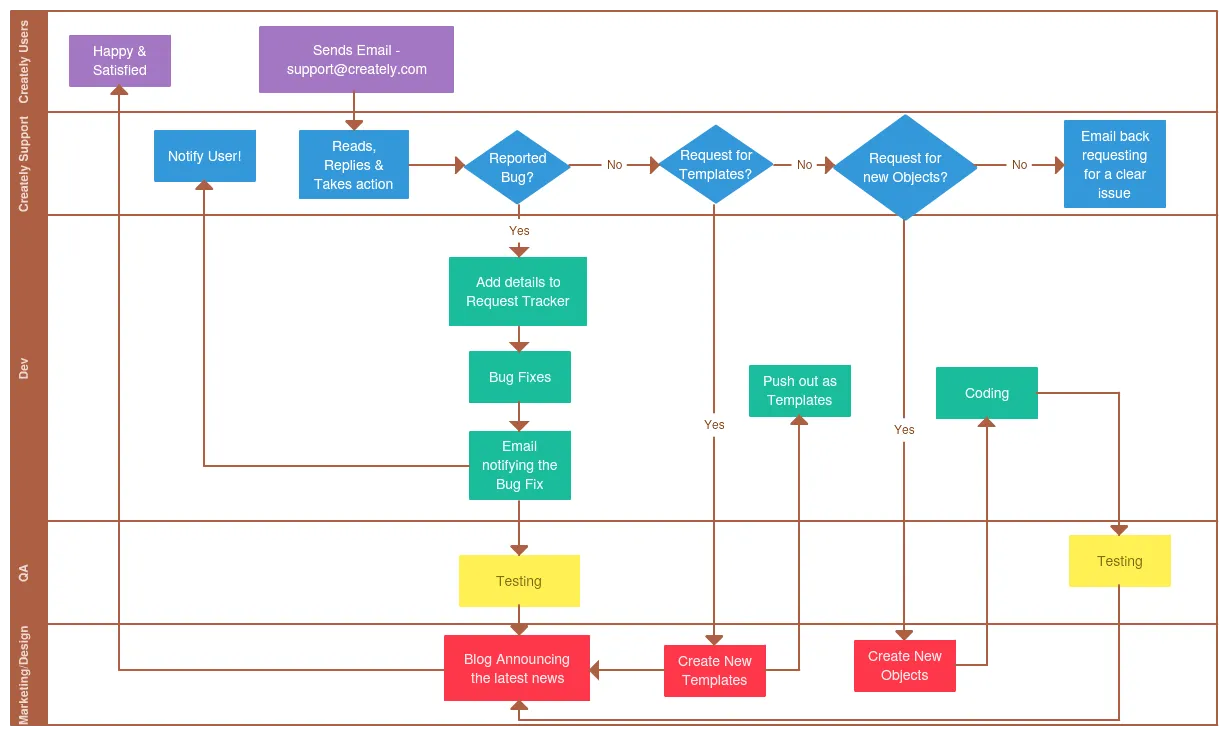
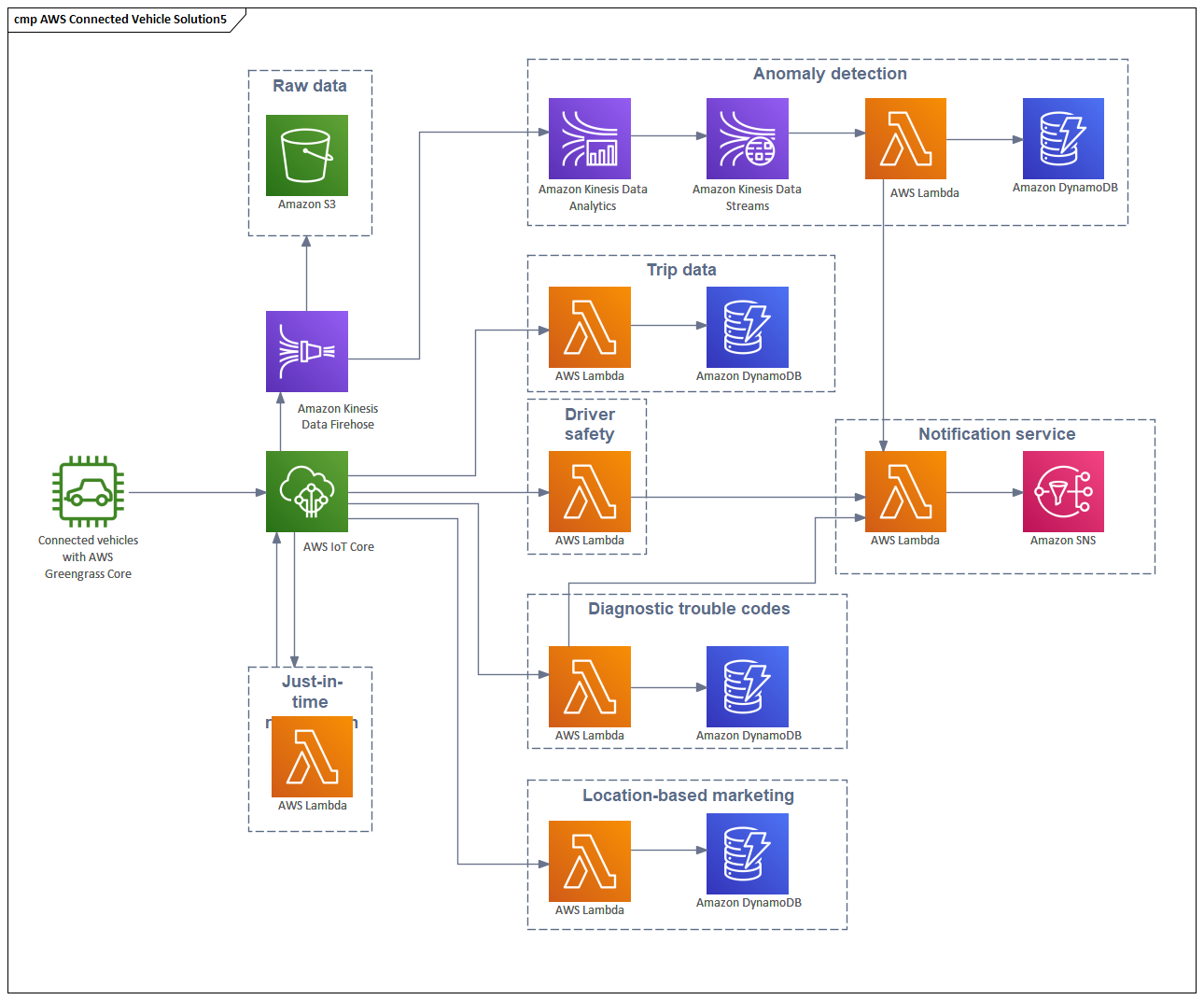
Choose diagrams with a clear canvas, legible labels, distinct nodes, and visible connector routes. Architecture maps, flowcharts, process diagrams, organization charts, and system documentation are strong candidates.

Decorative illustrations, logos, dense artwork, animated graphics, and files that depend on external fonts or images are less predictable. They may still render, but they do not necessarily contain diagram structure worth reconstructing.

Why Human Review Still Matters

AI reconstruction is designed to reduce redrawing work, not certify an exact conversion. Check spelling, connector direction, grouping, colors, and relative position before using the result as authoritative documentation.

The workbench is part of the product for this reason. Make corrections directly, save the real edited XML as a new version, and use chat for targeted changes when the initial interpretation needs refinement.

Three Steps

Use the svg to drawio converter from preview to editing

Prepare one SVG, confirm its rendered appearance, and review the editable result in the same workbench used by existing conversions.

1

Upload one SVG

Choose a static SVG up to 10MB. The browser checks its XML, dimensions, element count, and active references before preparing a preview.

2

Review the PNG preview

Confirm that important labels, lines, shapes, and colors are visible. Only this rendered PNG is uploaded when you start conversion.

3

Edit and save the draft

Inspect the generated Draw.io objects, correct ambiguous details, and save meaningful changes as versions you can revisit later.

FAQ

Questions about the svg to drawio converter

Review the input rules, privacy boundary, model behavior, and editing expectations before conversion.

1

Does the svg to drawio converter send my original file?

No. Parsing and rasterization happen in the browser. Only the prepared PNG preview is uploaded for storage and AI reconstruction.

2

Why not send image/svg+xml directly to the model?

The production vision providers do not document SVG as a supported image input. PNG is supported and already follows the tested model fallback path.

3

Will every SVG element become one Draw.io object?

Not necessarily. The model reconstructs the visible diagram, so simple shapes and text are easier to separate than filters, masks, complex paths, or decorative artwork.

4

Can Draw.io import SVG without this conversion?

Yes, but an ordinary SVG is inserted as one image object. This workflow is intended for users who need separate, editable diagram elements.

5

What happens to scripts and external images?

Scripts, animation elements, event handlers, and remote references are removed from the local rendering copy. The preview shows the remaining static result.

6

Are transparent SVG backgrounds supported?

Yes. The browser prepares a PNG with transparency. Review white or very light elements carefully because their visibility depends on the source design.

7

What SVG size is supported?

The source file can be up to 10MB. Rendering is bounded to 4096 pixels per side and eight million pixels so the browser and upload remain predictable.

8

Does a Draw.io exported SVG recover perfectly?

Some Draw.io SVG exports contain embedded diagram data, but this page currently uses the standard visual reconstruction path to keep billing and history behavior consistent.

9

How many free conversions are included?

Anonymous visitors receive 1 free conversion. Registering provides 2 credits and lets you keep conversion records and version history.

10

What should I review after conversion?

Verify all labels, arrow directions, attachment points, container membership, colors, and spacing. Save corrections in the workbench before sharing the diagram.

Use the svg to drawio converter for a working diagram draft

Prepare the vector locally, reconstruct the visible structure, and continue editing in Draw.io instead of tracing the whole diagram by hand.