AI Diagram Generator: Text to Draw.io in One Step

Pick a diagram type or let the AI decide, then describe what you need. You get real Draw.io shapes and connectors that you can keep editing, not a flat picture.

Diagram type

Output format

The output format can't be changed after the diagram is generated.

0/2000

Try an example

Free preview, no account needed. Pay $1.99 only to unlock the editable file.

Describe It in Words, Edit It in Draw.io

Most text to diagram tools give you an image or a block of Mermaid code. This AI diagram generator writes a native Draw.io file instead, so every box, arrow and label stays editable in the editor millions of people already use.

Ten Diagram Types

Flowcharts, ER diagrams, UML class, use case, sequence, activity and state diagrams, architecture diagrams and data flow diagrams.

Proper Notation

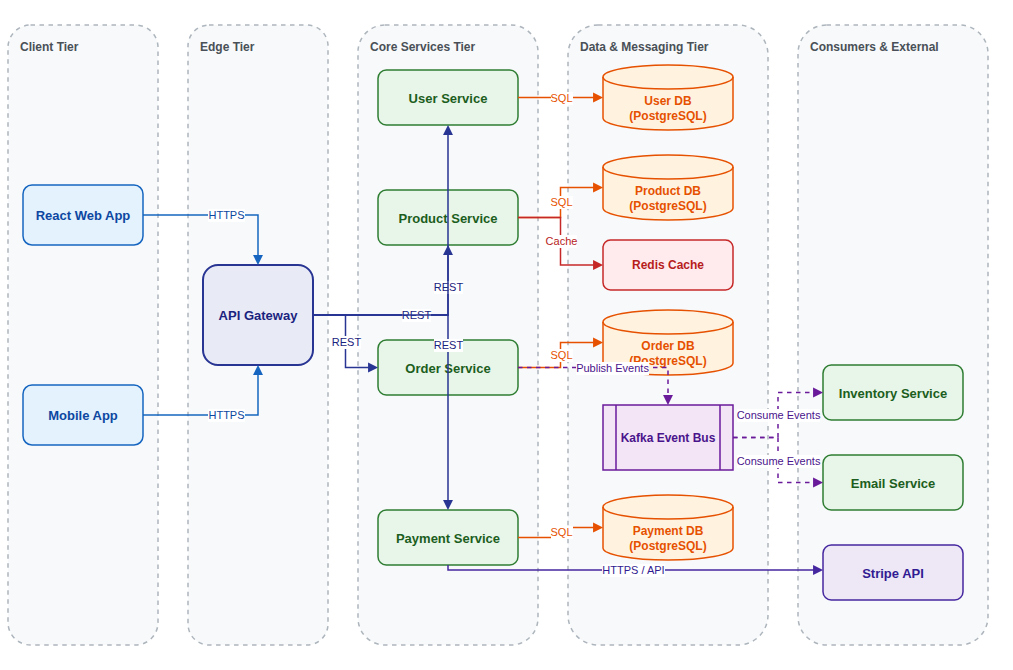
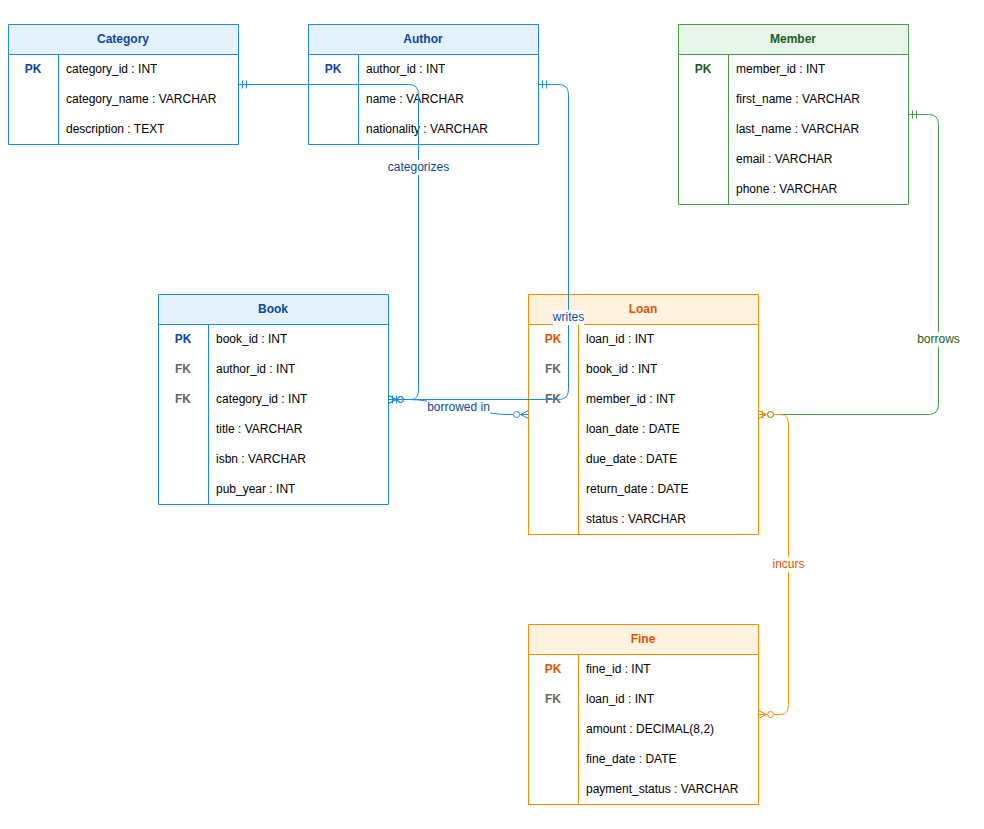
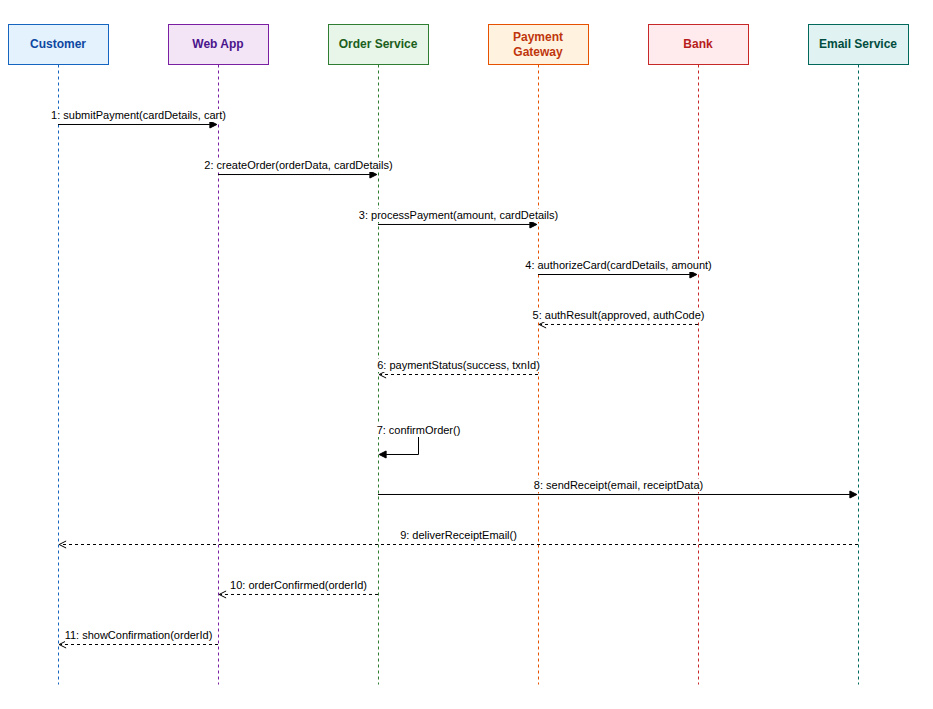
Each type follows its own rules: crow's foot for ERDs, lifelines for sequences, numbered processes for DFDs and AWS icons for cloud designs.

Real Draw.io Files

The result is a .drawio file built from Draw.io's own shapes, ready to edit, share or export to PNG, SVG or PDF.

Diagrams Made From One Paragraph

The AI diagram generator drew each example below from a short description, with no manual layout.

Three Steps

How to Generate a Diagram From Text With AI

The AI diagram generator turns a short description into an editable diagram in a minute or two.

1

Pick a Type and Describe

Choose a diagram type or Auto, then describe what you need or start from one of the examples above the button.

2

Review the Free Preview

The AI draws the diagram with the right notation and shows a watermarked preview so you can check it.

3

Unlock and Edit

Unlock the editable Draw.io file, refine it in the online editor or with AI edits, and download it.

Guide

Choosing the Diagram and Writing a Good Description

Which type answers your question, and how to describe it so the first result is close to what you need.

Which diagram type do you need?

Use a flowchart or an activity diagram for a process with steps and decisions. Use an ER diagram for the data a system stores, a class diagram for the structure of code, and a use case diagram for who does what with a system.

Use a sequence diagram for the order of calls in one scenario, an architecture diagram for how services and databases connect, and a data flow diagram for how information moves between processes and stores. Each type also has its own page on this site with examples and tips.

How to write the description

Write the way you would explain the diagram to a colleague: name the parts, then say how they connect or in what order things happen. Short, concrete sentences work better than long paragraphs, and naming each thing the same way every time avoids duplicates.

Mention anything that should stand out, such as a decision, an optional step, a one-to-many relationship or an external system. You do not need to know the notation; the AI diagram generator applies the conventions of the type you chose.

Why a Draw.io file matters

A picture from an image model cannot be edited, and Mermaid or PlantUML output needs code changes for every tweak. A Draw.io file is made of real shapes, so you can drag a box, recolor a tier or add a step with the mouse, and still ask the AI for bigger changes.

Draw.io is free, works in the browser and on the desktop, and plugs into Confluence, Google Drive, VS Code and GitHub. Generating straight to that format means the diagram fits into the tools your team already uses.

From first draft to final diagram

Treat the first result as a draft. Check it against your description, then fix small things in the editor and larger ones with an AI edit such as "split the payment service into two". This is usually faster than writing a longer prompt and starting over.

When it is done, export to PNG, SVG or PDF for documents and slides, keep the .drawio file next to your code, or turn it into PowerPoint with the converter on this site. Files from the AI diagram generator are ordinary .drawio files, so nothing ties you to this site.

Why Use This AI Diagram Generator

For students, developers, analysts and anyone who would rather describe a diagram than drag boxes around.

Draw.io AI Without Plugins

No extension or API key needed. Describe the diagram here and open the result in the online Draw.io editor.

Auto Type Detection

Leave the type on Auto and the AI diagram generator picks the diagram that fits your description best, such as a flowchart for a process.

Sensible Defaults

When your description is short, the AI diagram generator fills in the obvious parts, such as start and end steps, keys or return messages.

Free Preview First

Check a watermarked image of the result before you pay. Unlock the editable file only when the diagram is right.

AI Edits After Unlock

Ask for changes in plain words, such as "add an approval step" or "rename the users table", and the diagram updates.

Any Language

Write in English, Chinese, Indonesian, Spanish or another language, and the labels follow your language.

FAQ

AI Diagram Generator FAQ

Answers about diagram types, pricing, editing and Draw.io.

1

Is the AI diagram generator free?

A watermarked preview is free, up to 3 a day. The editable Draw.io file costs one credit, or a small one-time payment without an account.

2

Is this the same as draw.io AI?

It is a separate service built for Draw.io. You describe the diagram here, and the result opens in an online Draw.io editor as a normal .drawio file.

3

Which diagram types can the AI diagram generator make?

Flowcharts, ER diagrams, UML class, use case, sequence, activity and state diagrams, architecture diagrams and data flow diagrams.

4

Can I turn an existing image into a diagram instead?

Yes. The image to Draw.io converter on this site redraws screenshots, photos and PDFs of diagrams as editable files.

5

Can I edit the diagram afterwards?

Yes. The unlocked file opens in the Draw.io editor, where you can change anything by hand or ask the AI for changes.

6

How long can my description be?

Up to 2,000 characters. That covers most diagrams; for a large system, generate one part at a time and combine them in the editor.

7

Can I write the description in another language?

Yes. Labels follow the language you write in. Ask for English labels in your description if you need them.

8

What formats can I export?

You get a .drawio file. Draw.io exports it to PNG, JPG, SVG and PDF, and this site can also turn it into PowerPoint.

Generate Your Diagram Now

Describe what you need in a few sentences and let the AI diagram generator draw the first version for you.