Use Case Diagram Generator: From Requirements to UML

Explain who uses your system and what they need to do. The AI draws actors, use cases, the system boundary and include or extend links as a Draw.io file you can edit.

0/2000

Try an example

Free preview, no account needed. Pay $1.99 only to unlock the editable file.

Turn a List of Requirements Into a Clear UML Picture

A use case diagram answers one question: who does what with the system. Drawing it by hand means placing every actor, ellipse and arrow yourself. This use case diagram generator reads a plain description and lays out the whole picture for you.

Actors and Boundary

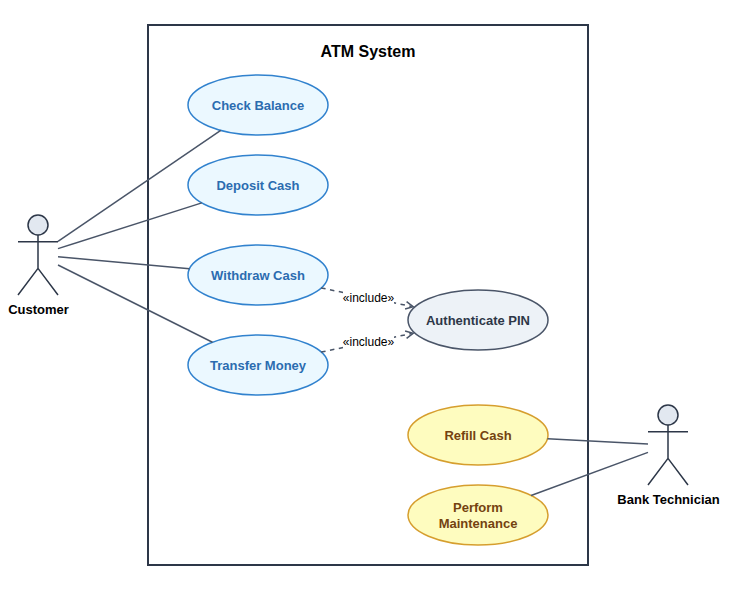
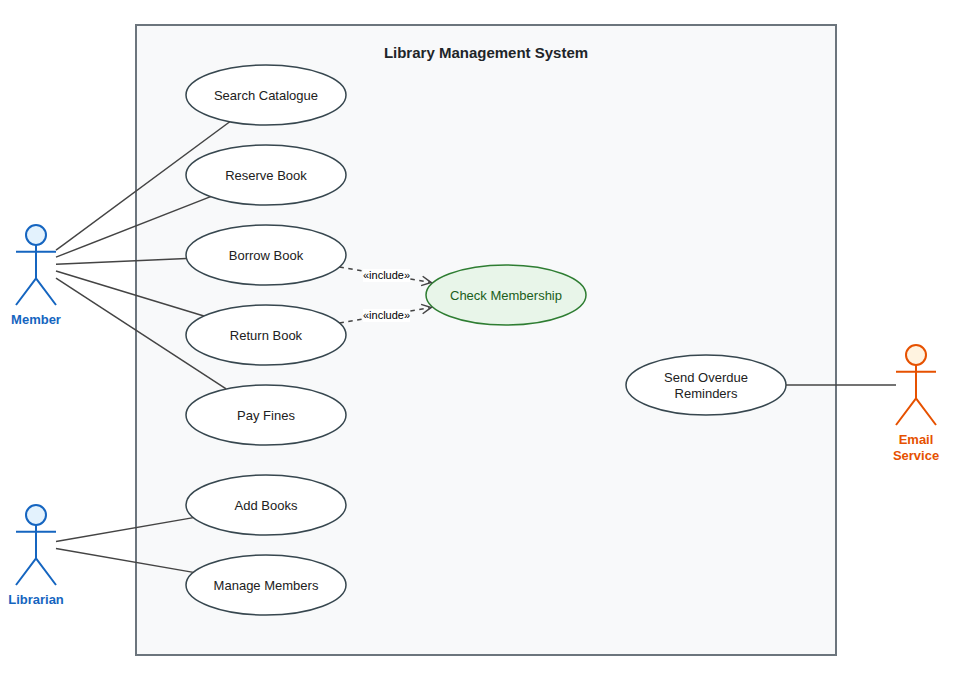
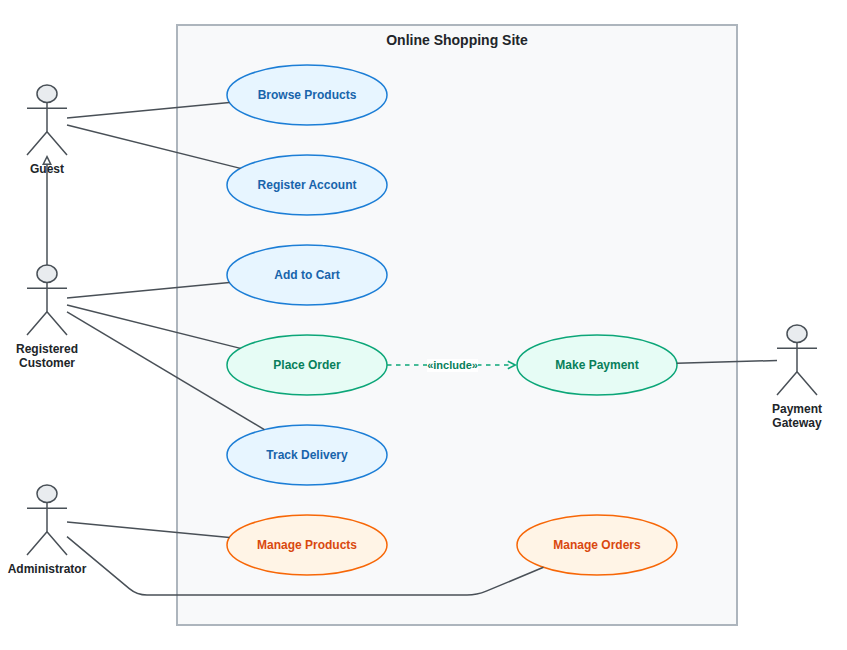
Primary actors stand on the left, supporting systems on the right, and every use case sits inside a labelled system boundary.

Include and Extend

Shared steps such as logging in or verifying a PIN become «include» links, and optional behaviour becomes «extend», drawn as dashed arrows.

Editable in Draw.io

The result uses Draw.io's own UML shapes, so you can rename a use case, add an actor or move things around without redrawing.

Use Case Diagrams Made From a Few Sentences

The use case diagram generator drew each example below from one of the descriptions in the example list, with no manual layout.

Three Steps

How to Make a Use Case Diagram From Text

The use case diagram generator turns a short description into a finished diagram in about a minute.

1

Describe the System

Write who uses the system and what they need to do, or start from one of the examples above the button.

2

Review the Free Preview

The AI draws actors, use cases and relationships and shows a watermarked preview so you can check it.

3

Unlock and Edit

Unlock the editable Draw.io file, refine it in the online editor or with AI edits, and download it.

Guide

Writing Requirements That Become Good Use Case Diagrams

What the diagram is for, how to describe your system, and how to check the result.

What a use case diagram shows

A use case diagram is the highest-level view of a system in UML. It shows the people and external systems that interact with it, called actors, and the goals they can achieve, called use cases. It deliberately leaves out screens, data and the order of steps.

That simplicity is why it appears so early in a project and in so many software engineering courses. It gives everyone a shared list of what the system must do before anyone argues about how. A use case diagram generator saves the drawing time so the discussion can start sooner.

How to describe your system

Start with the users. Name each kind of user and the main things they want to do, for example "customers search products and place orders". Then name any outside system the software talks to, such as a payment provider, an email service or a government database.

Mention steps that several goals share, like logging in or checking a balance, so the generator can turn them into include relationships. Optional behaviour, such as applying a discount code, becomes an extend relationship. Short, direct sentences work better than a long specification.

Checking the result

Look at the boundary first: actors must stay outside it and use cases inside it. Then check that every actor connects to at least one use case and that each use case is a goal, not a single click. "Pay for Order" is a good use case; "Press Pay Button" is too small.

Next, look at the dashed arrows. An include points from the main use case to the shared step, and an extend points from the optional behaviour to the use case it extends. If a direction looks wrong, fix it in the editor or ask the AI to reverse it.

Going further than use cases

A use case diagram tells you what the system does, but not how. For the order of messages inside one use case, such as a login or a payment, draw a sequence diagram. For the data behind it, draw an ER diagram, and for the code structure, a class diagram.

This site has a generator for each of those views, and they all produce Draw.io files that open in the same editor. Writing one description and reusing it across diagram types keeps names consistent from requirements to design.

Why Use This Use Case Diagram Generator

Made for students, analysts and product teams who need a requirements diagram they can keep editing.

Plain Language Input

Describe the system the way you would in a requirements meeting. The model finds the actors and the goals they have.

Standard UML Notation

Stick figures for actors, ellipses for use cases and a rectangle for the system, exactly as UML textbooks show them.

Short, Readable Labels

The use case diagram generator names every use case with a short verb phrase such as "Withdraw Cash" or "Track Order", so the diagram is easy to scan.

Free Preview First

Check a watermarked image of the result before you pay. Unlock the editable file only when the diagram looks right.

AI Edits After Unlock

Ask for changes such as "add a manager actor" or "make refunds extend cancel order", and the diagram updates in the editor.

Any Language

Write your description in English, Chinese, Indonesian, Spanish or another language, and the labels follow your language.

FAQ

Use Case Diagram Generator FAQ

Answers about notation, pricing, editing and accuracy.

1

Is the use case diagram generator free?

A watermarked preview is free, up to 3 a day. The editable Draw.io file costs one credit, or a small one-time payment without an account.

2

Does it draw include and extend relationships?

Yes. Shared steps become «include» and optional behaviour becomes «extend», both as dashed arrows with the stereotype label.

3

Can it show actor generalization?

Yes. If you say that one kind of user can do everything another can, for example an admin is also a user, the use case diagram generator draws an inheritance arrow between the actors.

4

Can I edit the diagram afterwards?

Yes. The unlocked file opens in the Draw.io editor, where you can change anything by hand or ask the AI for changes.

5

How detailed should my description be?

A few sentences listing the users, their goals and any outside systems are enough. Up to 2,000 characters works well, which covers most course projects.

6

Can I use it for my software engineering assignment?

Many students use it for a clean first draft. Compare the result with your course's rules, since some teachers expect particular naming or layout.

7

Can I write the description in another language?

Yes. Actors and use cases are labelled in the language you write in. Ask for English names in your description if you need them.

8

What formats can I export?

You get a .drawio file. Draw.io exports it to PNG, JPG, SVG and PDF, and this site can also turn it into PowerPoint.

Draw Your Use Case Diagram Now

Describe your users and their goals in a few sentences and let the use case diagram generator draw the first version.