Image to Flowchart Converter: Upload a Picture, Get an Editable Flowchart

Upload a screenshot, scan, sketch or photo of a flowchart and choose Draw.io, Mermaid, PNG, JPG, SVG, PDF or PowerPoint. Draw.io and Mermaid stay editable, with AI edits after unlocking.

Output format

The output format can't be changed after the diagram is generated.

Diagram image

Free preview, no account needed. Pay $1.99 only to unlock the editable file.

Turn Any Picture of a Flowchart Into One You Can Edit

A flowchart stuck in a screenshot, a scanned handout or a photo of a notebook cannot be changed without drawing it again. This image to flowchart converter reads the shapes, text and arrows in your picture and rebuilds them as a real diagram.

Any Source Picture

Screenshots from slides and PDFs, scans of printed procedures, hand-drawn sketches and phone photos of a whiteboard, in PNG, JPG or WebP up to 10 MB.

Logic Kept Intact

Steps, decision diamonds, Yes and No labels, loops and swimlanes come back as separate shapes and connected arrows, not as a flat picture.

Seven Output Formats

Get an editable Draw.io or Mermaid flowchart, or a clean PNG, JPG, SVG, PDF or PowerPoint file, from the same upload.

Before and After: Pictures Rebuilt as Flowcharts

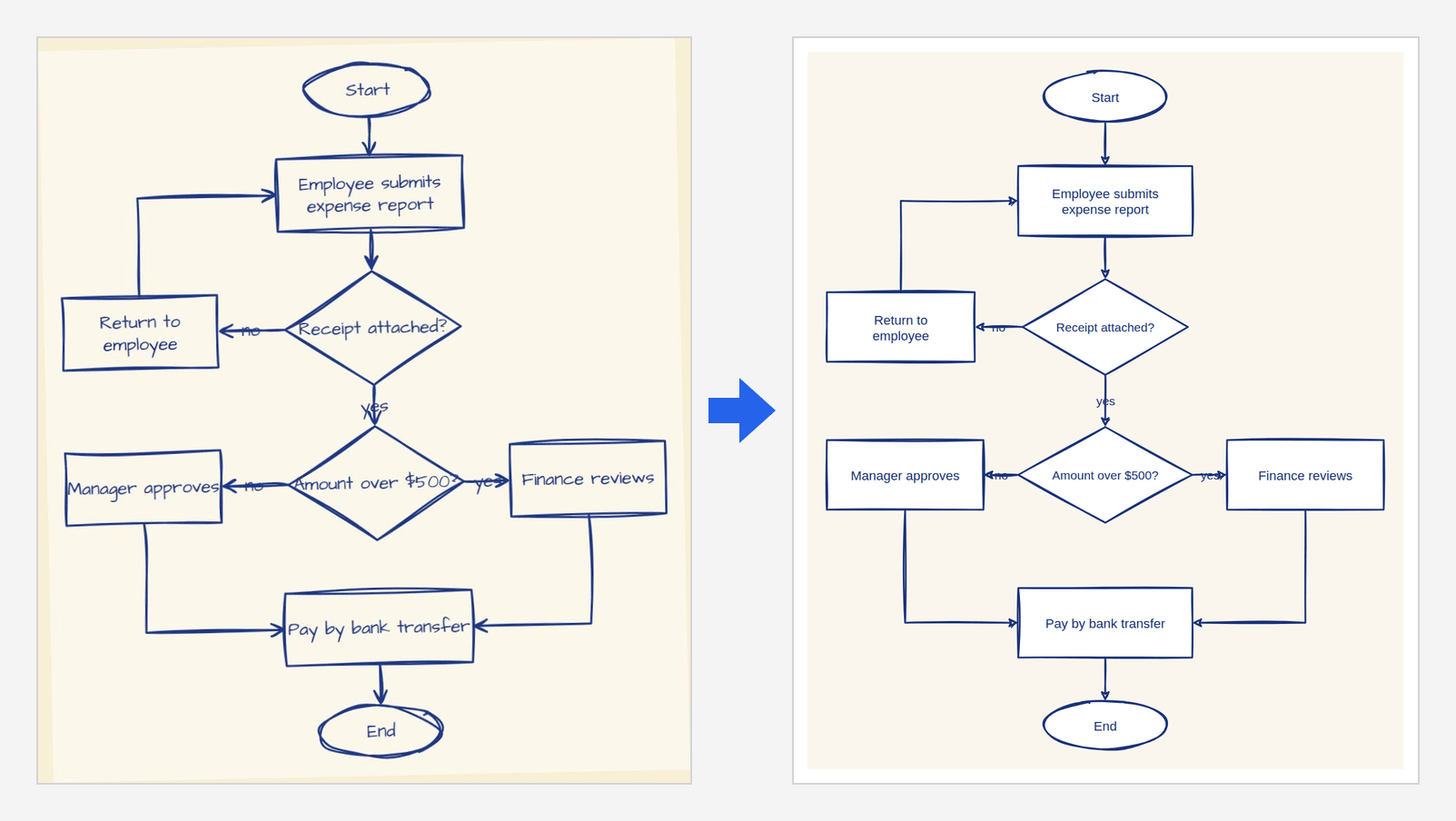
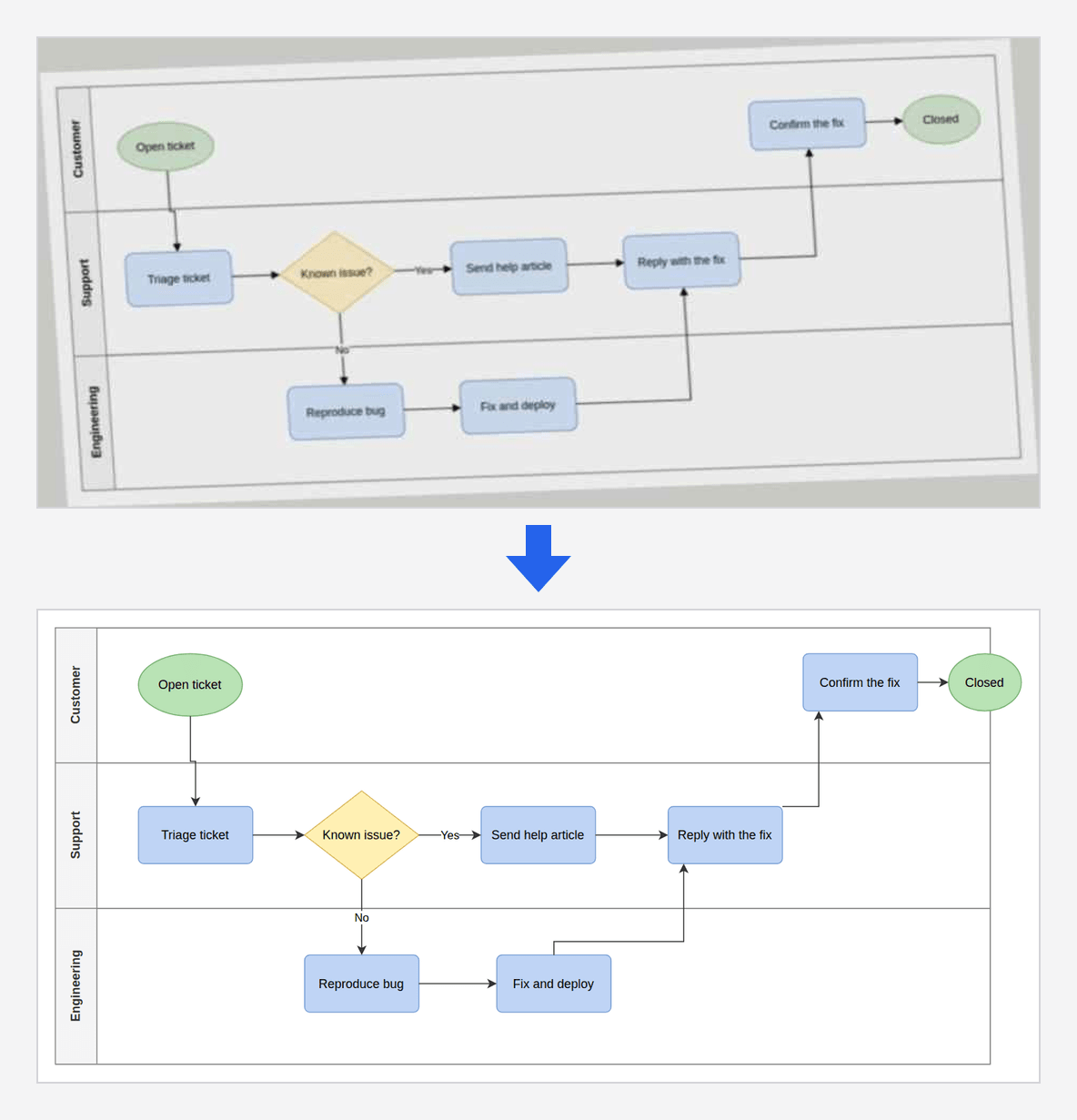
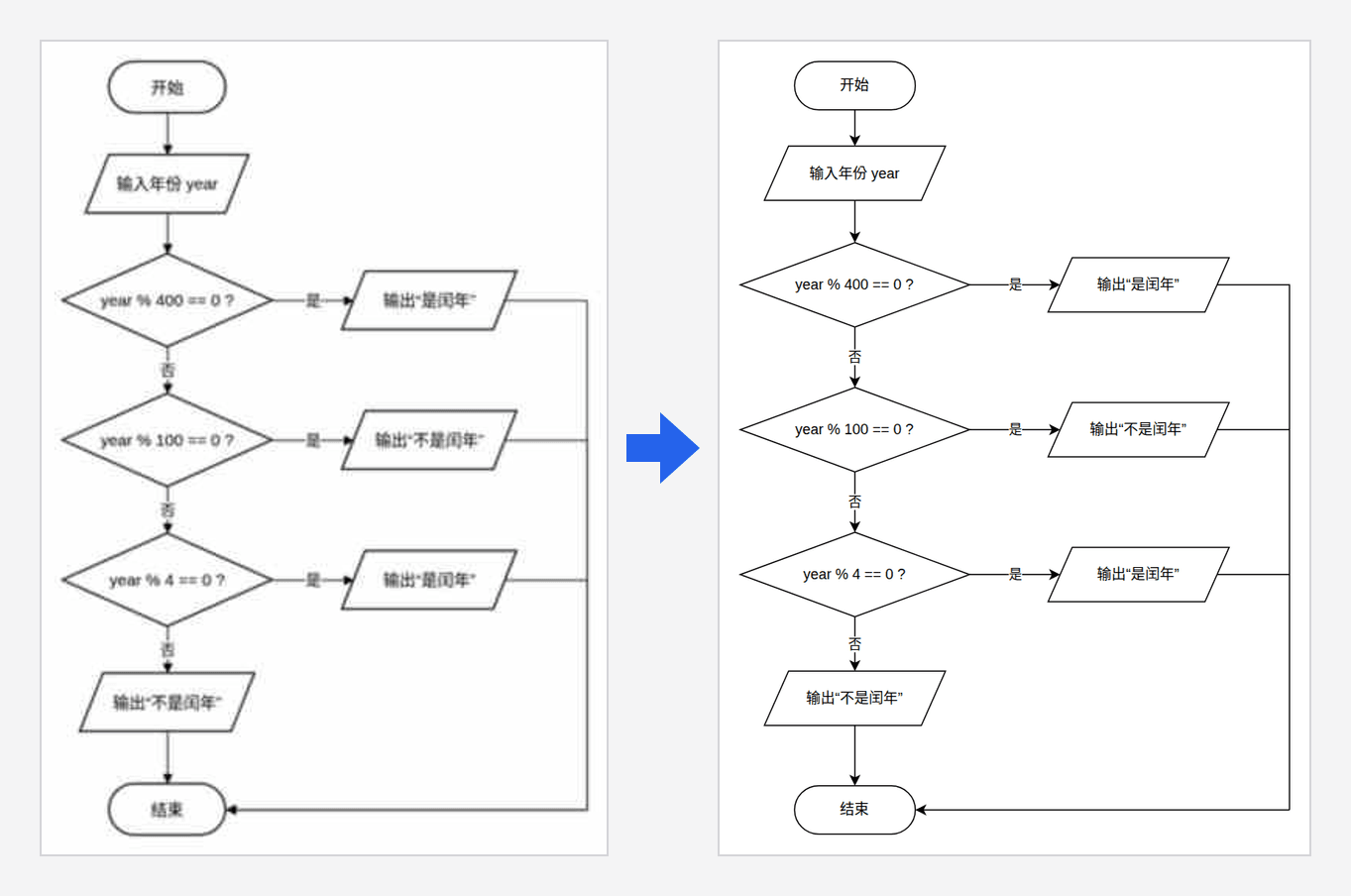
Each pair shows the uploaded picture and the editable result from the image to flowchart converter, with no manual fixes.

Three Steps

How to Convert an Image to a Flowchart

The image to flowchart converter turns a picture into a finished diagram in about a minute.

1

Upload the Picture

Choose the output format, then drop in a PNG, JPG or WebP of the flowchart, up to 10 MB. A screenshot, scan, sketch or photo all work.

2

Review the Free Preview

The shapes, arrows and branch labels are rebuilt and shown as a watermarked preview so you can compare them with your picture.

3

Unlock and Edit

Unlock the file, refine it in the online Draw.io editor or with AI edits, and download it in the format you picked.

Guide

Converting Images to Flowcharts

Where flowchart pictures come from, how to get the best result, and what to do with the file afterwards.

Why flowcharts end up as pictures

Many flowcharts only survive as images. A procedure was pasted into a Word file years ago, a lecturer shared slides as a PDF, a team drew a process on a whiteboard and took a photo, or the original Visio file is simply gone. The picture still explains the process, but nobody can update it.

Redrawing by hand means placing every box, retyping every label and reconnecting every arrow. An image to flowchart converter does that first pass for you, so your time goes into checking the logic and making the change you actually needed.

Getting a clean result from your picture

Crop the image to the flowchart itself and leave out unrelated notes, logos and page headers. Make sure the text is large enough to read when you zoom in. For photos, shoot straight on in even light and avoid glare on whiteboards and glossy paper.

Small tilts, mild blur and JPG artifacts are fine, as the examples above show. If a chart is very large, such as a process that spans several pages, upload each page separately; the image to flowchart converter works best with one flowchart per picture.

Image to flowchart compared with tracing it yourself

Tracing in a drawing tool gives you full control, but a chart with fifteen steps and five decisions can take an hour to line up neatly. Generic image to text tools recover the words but lose the shapes and arrows, which are the part that makes a flowchart useful.

This image to flowchart converter keeps both: the text and the structure. Because the result is a standard Draw.io file, you can still adjust every shape by hand, and nothing locks you into one app.

What to do with the converted flowchart

Keep the .drawio file next to your documentation so the process diagram can change with it, or open it in diagrams.net, Confluence or VS Code. Choose Mermaid if the chart belongs in a README or a Markdown wiki, and PowerPoint if it goes into a presentation.

Students can convert a textbook figure and annotate it for revision. Analysts can bring an old procedure into the current process map. The image to flowchart converter is for pictures you already have; when you only have the idea, the AI flowchart generator draws a chart from a written description instead.

Why Use This Image to Flowchart Converter

Made for people who have a flowchart as a picture and need it as a file they can change, share or put in a document.

Reads Messy Pictures

Tilted captures, compressed JPGs and pencil sketches are straightened out. Shapes are aligned on a grid and lines become clean connectors.

Real Flowchart Symbols

Ovals, rectangles, diamonds and parallelograms are matched to standard flowchart shapes, so the result looks the way textbooks and reviewers expect.

Text You Can Edit

Labels are typed text, not pixels. Fix a typo, rename a step or translate the whole chart without redrawing anything.

Free Preview First

Check a watermarked image of the result before you pay, and unlock the editable file only when the flow matches your picture.

AI Edits After Unlock

Ask for changes such as "add a manager approval step" in the AI panel, and the image to flowchart converter updates the diagram for you.

Batch Conversion for Pro

Pro subscribers can upload up to 20 flowchart images at once and download the results together.

FAQ

Frequently Asked Questions

Answers about converting pictures of flowcharts into editable diagrams.

1

Is the image to flowchart converter free?

A watermarked preview is free, up to 3 a day. The editable file costs one credit, or a small one-time payment without an account.

2

Which image types can I upload?

PNG, JPG, JPEG and WebP files up to 10 MB. For a flowchart inside a PDF, take a screenshot of the page or use the PDF to Draw.io converter.

3

Does it work with hand-drawn flowcharts?

Yes. Sketches on paper, notebooks and whiteboards are converted as long as the writing is legible. Messy handwriting may need a few labels corrected afterwards.

4

Can it convert swimlane flowcharts?

Yes. Lanes are rebuilt as swimlane containers with their names, and each step stays in the lane it was drawn in.

5

Which output formats can I choose?

Draw.io, Mermaid, PNG, JPG, SVG, PDF or PowerPoint. Pick the format before converting. Draw.io and Mermaid stay editable with AI edits; the others are finished files to download.

6

Will the labels stay in their original language?

Yes. Text is kept in the language of your picture, including Chinese, Indonesian, Spanish and most other languages.

7

How accurate is the conversion?

Clear charts usually convert correctly on the first try. Very small text, heavy shadows or crossing lines can cause mistakes, so compare the preview with your picture before unlocking.

8

Can I edit the flowchart afterwards?

Yes. After unlocking, move or rename shapes in the Draw.io editor, or describe a change in the AI panel and the diagram is updated.

9

What if I have no picture, only an idea?

Use the AI flowchart generator. Pick a basic, swimlane or program flowchart and describe the steps, and the chart is drawn from your words. This page only converts pictures.

Convert Your Flowchart Picture Now

Upload a screenshot, scan or photo and let the image to flowchart converter rebuild it as a diagram you can edit.